How do you edit a page in WordPress?
To edit text in WordPress, log in by adding /wp-admin to your website address, open the page or post from the Pages or Posts menu, click into the text and type your changes, then save. You do not need any technical knowledge, and the steps below take you through it.
- Log in. Go to your website and add /wp-admin to the end of the address (for example https://www.yourwebsite.co.uk/wp-admin). Enter your username or email address and your password.
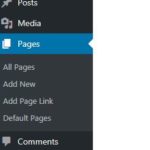
- Find the page. In the menu on the left of the dashboard, click Pages or Posts, depending on what you want to edit. Hover over the title and click Edit. Or, while you are logged in, browse your website and click Edit Page in the toolbar at the top of the screen.
- Make your changes. Click into the text and type. The small toolbar above the text you are editing lets you make words bold or italic, add links and change formatting. Headings and lists have blocks of their own.
- Add images or other media. Click the + button to add a new block, choose Image, Gallery or Video, then upload a file or pick one from your Media Library.
- Save. Click the button in the top right corner: Publish for a new page, or Save (Update on older versions of WordPress) for a page that is already live. Wait for the confirmation, then view the page to check how it looks.
If your page was built with Elementor, click Edit with Elementor instead of Edit. Click any text on the page to change it, either on the page itself or in the panel at the side, then save with the Publish or Update button.
With a little practice you will be able to keep your website up to date quickly. If you would rather not, we can make changes for you as part of our website support.
When you log in, you will see the dashboard, with a menu down the left-hand side. To begin with you only need a few parts of it: Pages, Posts and Media.
You can also go straight to your website by hovering over your site name at the top left and clicking Visit Site. Browse to the page you want to change, then click Edit Page in the toolbar at the top.
Pages are made up of blocks: separate blocks for headings, paragraphs, images, galleries, tables, files and so on. Click a block to change it, and use the arrows on the block’s toolbar to move it up or down.
To add something new, click the + button where you want it to go, or type / on an empty line and start typing the name of the block you want. When you have finished, save your changes, wait for them to be saved, then click View Page to see how it looks to visitors.
What do the main blocks do?
This is a Heading block
This is a paragraph block, where you type your text. Press Enter to start a new paragraph.
The block below is a gallery. You can upload several images at once, drag them into the order you want and choose how many columns they appear in.
You can also put a single image in an Image block. Below, we have used a Columns block with three columns, added an image to each one and put a separator underneath to set them apart. Images can have captions and can link to other pages on your site or to other websites.
You can also wrap text around an image, as here. Images can be cropped, and shown as small thumbnails or at full size.